Programming on 34 Keys
Minimizing your keyboard layout is a slippery slope. A few months ago, I built the Ferricy, a 34-key-split-ortho-ergo keyboard. The Ferricy is a fork of the Ferris Sweep MX Bling.
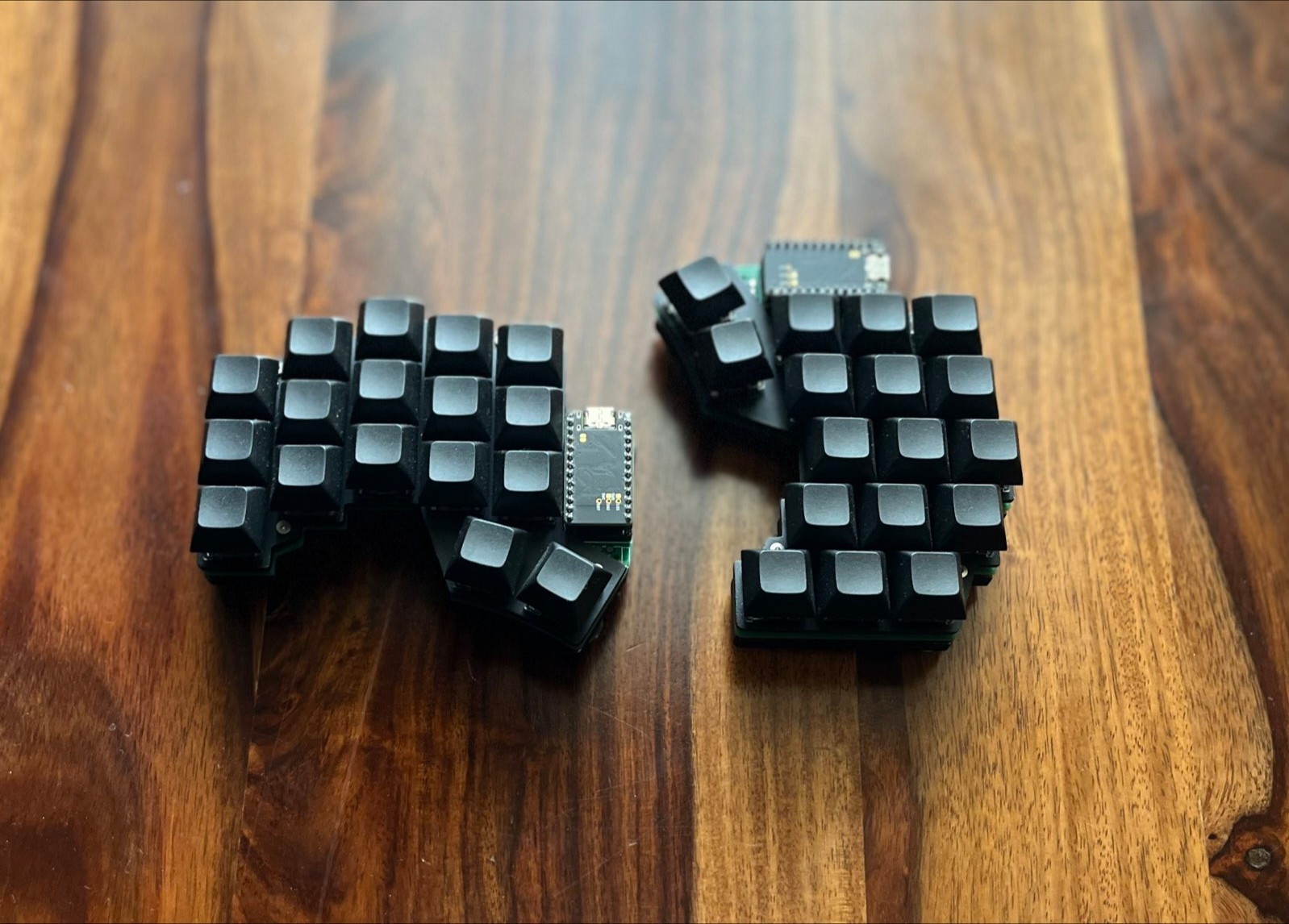
My daily use consists of a bit of prose and a lot of program, my layout has evolved accordingly.
Base Layer
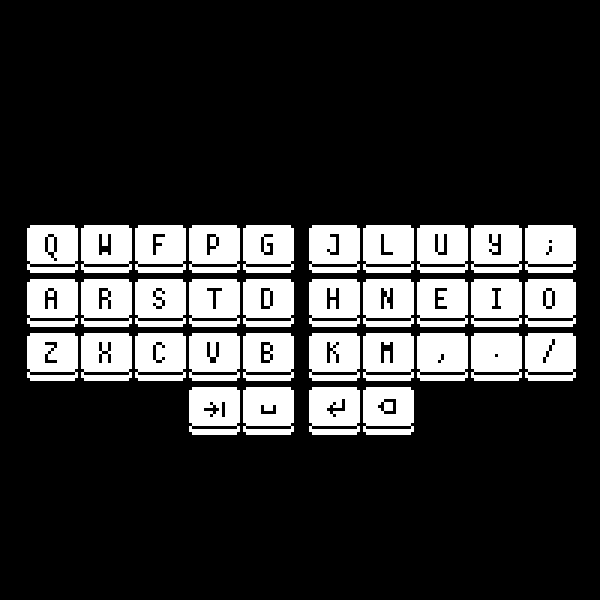
The base layer contains alphabets, four symbols and four whitespace keys:
- Alphas: Stock Colemak, with no modifications whatsoever
- Symbols:
. , / ; - Whitespace: tab, space, enter, backspace (from left to right)
Layers
Keyboard input is complex and it is impossible to skirt around it. You can either use a keyboard with enough keys to supply all possible inputs (a mechanical burden), or you can use firmware to supply all possible inputs (a cognitive burden). Layers are a cognitive burden.
I use 3 layers, heavily inspired by Miryoku, but tuned for programming. Excluding the base Colemak layer:
NAV: activated on holdingspace(left thumb)NUM: activated on holdingtab(left thumb)SYM: activated on holdingenter(right thumb)
The NAV Layer
As the name suggests, this layer is focused on navigation. Arrow keys and the likes.
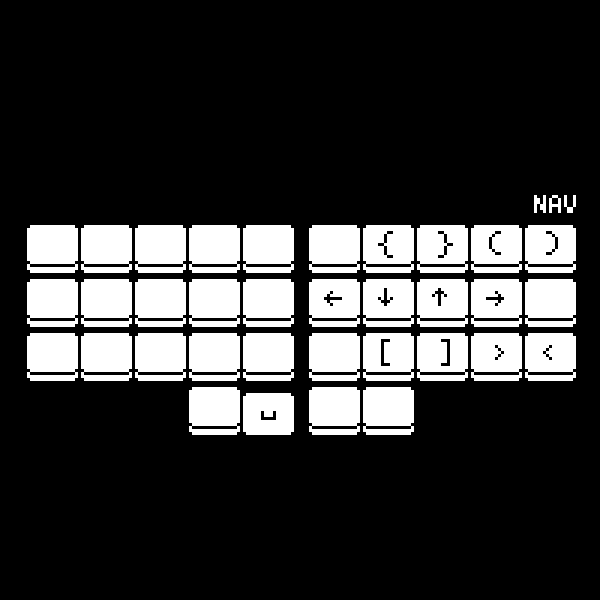
Using Vim and Colemak means you lose out on HJKL navigation.
However, on activating the NAV layer, the right home-row is
converted into arrow keys. In essence, by holding space, I
can navigate Vim with the home-row, or Firefox, or my PDF
reader. I no longer need to look for software that allows
Vim navigation keys, because it is baked into the firmware!
My Vim motions are not limited to HJKL. In fact, my Vim
motions are rarely HJKL. I tend to use } (next paragraph)
and ) (next sentence) more often. As a result, these have
found their way into my NAV layer, over the likes of
PgDown and End. Having brackets at my index and middle
fingers is nice for programming too.
The SYM Layer
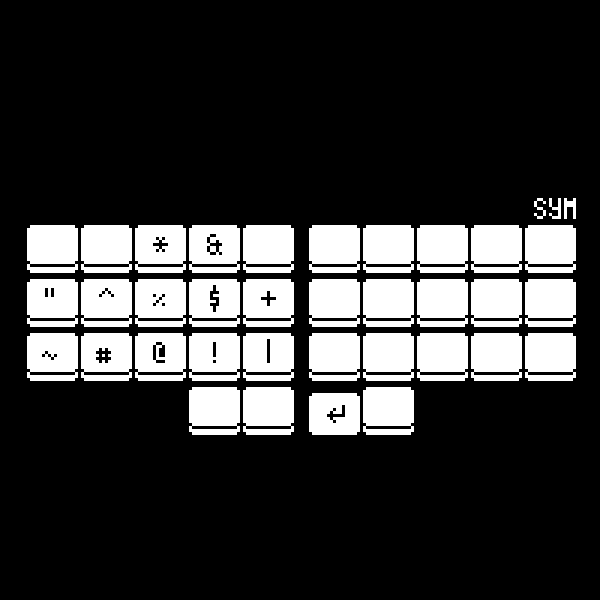
This layer contains all the symbols that you would find by
hitting Shift and a key on the number row. Probably
noteworthy to Vim users: the symbols are arranged in the
form of a mirrored numpad for exactly one reason: to move
$ to the left of ^. It has always annoyed me that $
moves the cursor to the end of the line and ^ moves it to
the beginning, but their position on a typical number row
are reversed, 4 comes before 6.
The NUM Layer
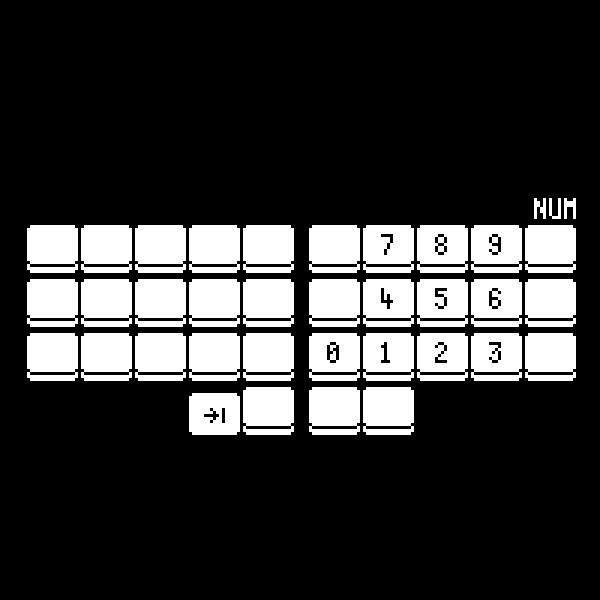
Another deviation from Miryoku, the numpad just feels right on my right hand.
ZMK Combos
If you have been paying close attention, you might have
noticed that escape didn't make it to any layer. escape
is too crucial to put on a non-base layer, but at the same
time, not as important to deserve a place on the base layer.
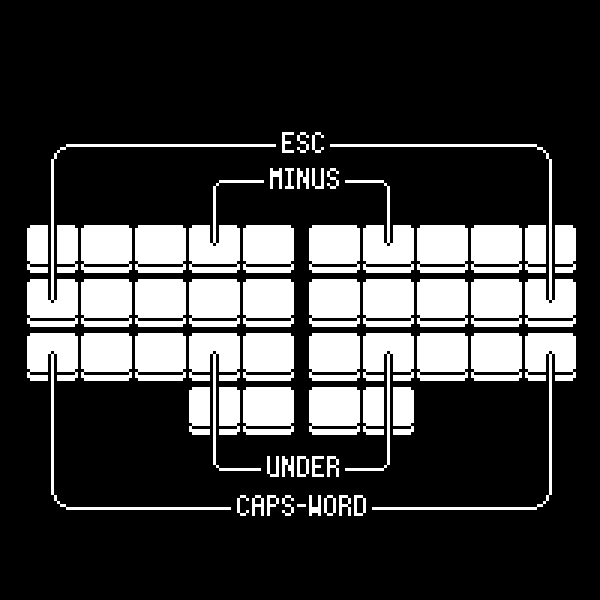
That is where ZMK's combos come in. Combos let you tap any
number of keys, and combine them to form a single key. I
have combos set up for underscore, minus, escape and
caps-word (more on caps-word later):
Home-Row Mods
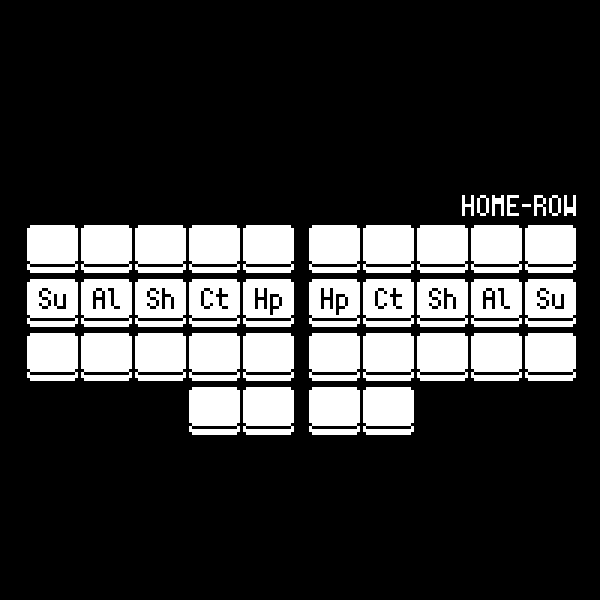
Inherited from Miryoku, I have home-row mods for activating
Super, Alt, Shift, Ctrl and Hyper (Ctrl + Shift + Alt + Super). The idea is to send T on tap and Ctrl on
hold. Home-row mods are fairly popular, so I'll not go into
the details.
Hyper bridges the gap between firmware and software. You
can never configure key combination that, opens Firefox, for
example, through firmware alone. However, with the Hyper
key, and some sxhkd magic, you can emulate that. Pressing
Hyper + F on a keyboard is just two keys, but the key
codes sent are Ctrl + Shift + Alt + Super + F. That key
combination is not intercepted by any application as a
shortcut, except for the following sxhkd stanza:
super + alt + shift + ctrl + f
  xdotool search "Mozilla Firefox" windowactivate
Alternatively, you can intercept unused F keys: F13
through F24.
Home-row mods are mirrored on each half because it would be
impossible to hit Ctrl + T if not; they lie on the same
key.
Caps-Word
Caps-word is a clever caps-lock, built into ZMK. Typing out
constants such as PORT with home-row mods would look like
this:
- hold
e(shift) on left hand, and tappon right hand - hold
e(shift) on left hand, and tapoon right hand - hold
s(shift) on right hand, and tapron left hand - hold
s(shift) on right hand, and tapton left hand
This hold-alternate-hold dance gets tiring quickly. With caps-word, however:
- toggle
caps_word - type out
p,o,r,t - hit a break character (space, enter will do)
- continue
Caps-word automatically disables capitalization upon encountering a breaking character, (which are space, enter or any modifier, by default) right in the firmware!
Findings
34-keys has been reasonably comfortable to use, for both prose and program. My palms do not move across the desk at all, as I reach for keys. I mostly write Rust and Bash, and my layout has evolved to accomodate special characters from their grammars (angled brackets and hyphens, specifically). If you are on a similar journey, I would suggest focusing on accuracy and comfort over speed. Speed comes with time.